01
Course Structure
You will have the syllabus of the course as it is offered at ASU. You will create yours based on your institution's guidelines.
CONFIDENTIAL — FOR INSTRUCTOR USE ONLY
A Resource for Faculty, Guest Instructors, and Course Assistants
Quick Access
Welcome to the Global Link Program! One of the most distinctive academic pathways in international higher education today. As a faculty member teaching a Global Link course, you are not simply delivering course content; you are actively shaping the academic trajectory of students who are simultaneously enrolled in two-degree programs at once: one at your home institution and one at Arizona State University (ASU).
Global Link programs are, at their core, connected programs. They are designed so that the courses your students take at your institution are academically recognized and transferred to ASU as part of an approved Plan of Study. Depending on the pathway, students may pursue an Undergraduate Dual Degree, earning two bachelor's degrees, one from your institution and one from ASU, or a Graduate Dual Degree, in which they can transfer up to twelve graduate credits toward an accelerated master's degree at ASU. In some cases, students may even complete up to 40% of their master's degree while still enrolled as undergraduates.
Global Link has the following pathway types:
This means that the academic experience you provide in your classroom has direct implications for your students' futures at ASU, including their credit transfers, academic standing, and readiness to succeed in a US-based university environment. Every lecture, every assignment, and every discussion contributes to a larger educational journey that may take students across continents.
"These programs are a great differentiator, a very positive contribution to their employability, to the development of their global mindset, and hopefully to their future professional careers."
The Global Link experience is Powered by ASU, which means it is grounded in ASU's New American University principles, a commitment to access, excellence, and impact. Your course exists within this broader ecosystem, and as an instructor, you are entrusted with upholding both the academic standards and the transformative spirit that define the ASU experience.
Your role in this program extends well beyond that of a course instructor. You are a Global Link Ambassador, a key figure in your students' transition from your home institution to ASU and to careers that may unfold on a global stage.
What Does It Mean to Be a Global Link Ambassador? A Global Link Ambassador is an educator who understands that their course is one part of a larger international academic experience. You hold responsibility not only for the quality of what you teach, but also for the integrity, continuity, and global relevance of your students' academic journey.
As a Global Link Ambassador, your responsibilities include the following:
This guide has been designed to support you in all of these responsibilities. It is a practical tool, but also a statement of purpose: to help you teach not just a course but a chapter in your students' lives.
Arizona State University places immense value on the research and scholarship of its students and faculty and is deeply committed to a culture of academic integrity and scholarly ethics. As a partner institution and a faculty member in a Global Link pathway, you are welcomed into that culture and asked to help foster it.
Academic integrity is not merely a policy requirement. It is a foundational value that makes the Global Link credential meaningful. When your students transfer to ASU, they join a community where integrity is expected at every level. If your course and the habits of mind it cultivates reflect that same standard, your students will arrive prepared to thrive.
"No matter what stage of your educational or professional career pursuits, acting with integrity is a cornerstone of leadership and good citizenship." (ASU Academic Integrity Principles)
We ask for your commitment to the following principles throughout the term:
The phrase "Powered by ASU" is more than just a branding slogan. It represents a meaningful academic and institutional connection: your institution's programs and the courses they contain are aligned with and academically associated with Arizona State University's curricula, standards, and values.
This connection has practical implications for how your course is designed and delivered:
Think of your course not as a standalone unit, but as Chapter One of your student's ASU journey. What you teach today is the foundation they will build upon at ASU tomorrow.
This Instructor Guide has been developed to serve as the authoritative operational and philosophical reference for all faculty members, guest instructors, and course assistants teaching within a Global Link pathway at a Cintana Alliance member institution. It is designed to be consulted before, during, and after the term, not only as a technical checklist, but as a companion to your practice as an educator in this unique cross-institutional program.
Primary instructors responsible for course delivery and grade submission.
Subject-matter experts invited to lead specific modules or sessions within an approved course.
Teaching assistants, tutors, and support personnel who facilitate discussions, grade assignments, or assist with course logistics.
Regardless of your specific role, this guide addresses the shared responsibilities of everyone involved in delivering a Global Link course: maintaining academic integrity, adhering to the syllabus and ASU-approved learning outcomes, ensuring the course is ready before the term begins, and supporting student success throughout the term.
This guide is organized for both sequential reading and rapid reference. You do not need to read it cover to cover before your first class, but we strongly recommend reviewing all sections before the term launch.
If you are a returning instructor and simply need to verify your course setup before a new term, you may go directly to the Course Build & Readiness Checklist. If you are new to the Global Link program, we strongly recommend reading this guide in full before your course begins.
Use the left menu to jump directly to any section of this guide:
1. Welcome to the Instructor
2. Purpose Statement
3. Course Overview
4. Course Build & Readiness Checklist
5. Working Within Canvas: What You Can and Cannot Edit
6. Module Structure & Templates
7. Assessment & Grading
8. Student Engagement & Facilitation: Best Practices
9. Accessibility & Technology
10. Versioning & Revision Log
11. A Final Note: You Are Not Teaching Alone
You will have the syllabus of the course as it is offered at ASU. You will create yours based on your institution's guidelines.
You will know which textbooks are used at ASU. If you can access them, great! If not, we will suggest alternative textbooks aligned with the Learning Outcomes.
You will find ASU Masterclasses, ASU Certificates, and Global Signature Courses as alternatives.
You will have introductory videos already scripted for the Home Page and each module. If you prefer to replace them with your own recording, follow the video guidance in this guide.
You can upload your own slides and complementary materials in the "Resources by Your Instructor" section of each module. This content is optional and complements, not replaces, the required materials.
Course-level Learning Outcomes are approved by ASU and displayed on your Home Page (see the "Course Learning Outcomes" list). You may add contextual framing around them, for example, a sentence connecting them to local industry needs or examples relevant to your institution, but you cannot edit, narrow, or reword the outcomes themselves. They must stay exactly as approved, since this is what's checked for transfer credit eligibility. (A similar logic applies to module-level Learning Objectives, see the Guiding Principle for working within Canvas.)
Your Home Page already includes a course map, built as a row of module cards (Module 1 through the final module), each showing the module title and a short description. Each card has a date field, shown as a placeholder like "[Insert Week Dates Here]", that you're expected to fill in with your term's actual schedule. The card titles and descriptions are locked; the dates are yours to complete.
In other words: you don't need to build a separate course map from scratch, it's this same module card layout on your Home Page. Your only action item is filling in the date range for each module.
A simple week-by-week table, built from the same dates you enter on the module cards, is the easiest way to give students a single reference point. Example structure:
| Module | Weeks / Dates | Key Deadline(s) |
|---|---|---|
| Module 0 | [Insert Dates] | Syllabus Quiz, Academic Integrity Agreement |
| Module 1 | [Insert Dates] | [Insert Deadlines] |
| Module 2 | [Insert Dates] | [Insert Deadlines] |
| ... | ... | ... |
This is a template, not a fixed format, adapt the number of rows to your course's actual module count and term length.
These are already built into Module 0 of your course, ready for you to review and adapt:
Attendance and late-work policies are not currently built into the course shell, those remain entirely up to each institution's own syllabus, per the Grading Workflow guidance.
Scope note: this checklist covers your course's build and Global Link format standards, the things you can verify directly. Your day-to-day work with students (grading cadence, announcements, office hours, engagement, course evaluations) isn't part of it, since that's shaped by your own teaching style and your institution's policies, not a fixed format. See Student Engagement & Facilitation for guidance on that side of things.
Before making any change inside your Canvas course shell, ask yourself this question:
Does this change affect what the student sees or reads as context/guidance (editable), or does it affect what the student is required to learn, do, or how they will be assessed (locked)?
In other words:
Your course was calibrated against ASU-approved Learning Outcomes. Cosmetic and contextual elements can be adapted to your institution's identity; structural and assessment elements cannot.
On Learning Objectives specifically: you may enrich and contextualize a module's stated Learning Objectives, for example, adding local examples, industry context, or supplementary framing that helps your students relate to them. What you cannot do is modify, narrow, or replace the original objective itself. The core Learning Objective, as approved by ASU, must remain intact and demonstrably met; this is what protects your students' credit transfer eligibility (see Connecting Your Course to the Powered by ASU Experience).
Every Global Link course is organized into two distinct areas, each with its own editing logic:
| Element | Editable | Locked / Requires Action |
|---|---|---|
| Home Page, Welcome & Overview | Bracketed placeholders (course code, course name) | Core program-context narrative |
| Home Page, Institution Logo | Action required: edited directly in Canvas, replace the placeholder logo in the page footer, next to "Powered by ASU" (see How to Make Common Edits in Canvas) | Overall page layout, locked |
| Course Syllabus Page | — | Action required: the current PDF is a reference example, not an editable file, use it to build your own syllabus (or your institution's), then replace it with your finished version before publishing; delete the instruction box once done |
| Course Introduction Video (Home Page) | Optional: replace the ASU-curated video with your own recording (see A Note on Videos Specifically and the video script guidance) | If no change is made, the existing ASU-curated video remains, not mandatory to replace |
| Meet Your Professor | Action required: replace this section with your own recorded introduction video (background, contact info, office hours) | — |
| PBA Complementary Resources (Masterclasses / Certificates / Signature Courses) | You may recommend these to students or use them as optional activities | The list itself is curated and dated centrally ("up to date as of [date]"), don't edit the entries, just verify links periodically |
| Module Navigation Panel | — | Structure and page order, locked |
| Module Section | Editable | Locked / Requires Action |
|---|---|---|
| Resources Guide | — | Internal reference page (Learning Objectives + approved resource alternatives), locked, consult before editing anything else |
| Overview → Video Script | Instructor may replace with their own recorded video (see script guidance in 6.2) | — |
| Overview → Text & Learning Objectives | Contextual enrichment only (see the Guiding Principle) | The overview text and the stated Learning Objectives are locked |
| Learning Materials → Readings | Recommended default: keep the original reading. If you don't have access to it, replace it with the approved alternative listed in that module's Resources Guide | Removing a reading without replacing it with an approved alternative; must delete the "NOTES FOR THE INSTRUCTORS" box before publishing (see the Instructor Note Box Types) |
| Learning Materials → Resources by Your Instructor | Action required: upload your own supplementary materials here. Keep the page unpublished until at least one resource is uploaded | Do not publish this page empty |
| Learning Materials → ASU Complementary Materials | — | Curated by ASU, locked |
| Assessments Guide | — | Framing text, locked |
| Assessments (Quiz, Discussion, Data Application Exercise, Project Checkpoint, etc.) | Format, context, or delivery approach, and the activity itself, provided the same Learning Objective is still met (see Modifying Learning Activities) | Timed, graded quizzes (time limit, question bank, point values) are stricter, treat as locked unless the Modification Notification Process is followed |
| Module Banner (each module's landing page) | Action required: edited in Canva, not in Canvas, the logo placeholder is part of the designed banner graphic; replace it in Canva and re-upload the finished image (see How to Make Common Edits in Canvas) | Rest of the banner design/layout, locked |
Before editing an assessment, first check whether you and your students have access to the original course resources referenced in it, some are paywalled. If you don't have access, use one of the approved alternatives listed in that module's Resources Guide instead of skipping the activity.
You are free to edit or change a learning activity; this isn't limited to cases where the original resource is inaccessible. If you replace the originally recommended resource (textbook, case study, or recommended framework) with one of your own choosing, and that change affects the activity, you may edit or replace the activity accordingly. How you design the edited assessment is entirely up to you, but for your convenience, the Resources Guide already pairs each approved alternative with a suggested assessment, so you don't have to build one from scratch if you'd rather not.
The one requirement is curricular alignment: whatever you change it to must still cover the module's Learning Objectives. Where possible, though, we recommend keeping the ASU-recommended resource and activity as originally designed, to preserve the intended learning experience, think of using an alternative as an option available to you, not a default.
On quiz questions specifically: a graded quiz's question bank, timing, and point values are otherwise locked (see the Editable vs. Locked breakdown for Content Modules, and the What You Should Never Do list). The one exception is a question that directly references a reading or resource you've replaced with an approved alternative, in that case, you may edit that specific question so it reflects the change, the same way the Resources Guide flags which assessment a reading feeds into. This doesn't open up the rest of the quiz to editing.
You'll recognize these right away because they repeat across every module. Here's exactly what each one means and what to do the first time you encounter it:
| Box Type | Where It Appears | What You Should Do |
|---|---|---|
| "NOTES FOR THE INSTRUCTORS" | Readings pages, when an approved alternative exists | Replace the reading only with the approved alternative listed in the Resources Guide; delete the box before publishing |
| "Instructor Action Required, Before Publishing This Page" | Pages with bracketed placeholders that must be completed (e.g., Syllabus) | Follow the numbered steps in the box; the last step is always "Delete this box" |
| "Keep unpublished" pattern | Pages that depend on your own content (e.g., "Resources by Your Instructor") | Do not publish the page until at least one resource is uploaded; delete the internal box once complete |
Example of the first type, as it appears in the course: "Important: If you choose to replace any assigned readings with an open-access alternative, use only the approved alternatives provided in the Resource Guide. Remove any readings you will not use and add the selected replacements, so this page accurately reflects the final assigned readings. Before publishing: Once all updates are complete, delete this note before publishing the course."
1. Replacing the Course Syllabus PDF
1. Go to the Course Syllabus Page.
2. Click to open or download the current PDF. This is a reference example, you don't edit this file directly.
3. Read through it and note the relevant information (learning outcomes, course structure, policies) you'll need.
4. Build your own syllabus using that information, or use the version generated by your institution.
5. Save your institution's syllabus as a PDF.
6. Return to the Course Syllabus Page and click Edit.
7. Delete the placeholder PDF file.
8. Upload your finished syllabus PDF in its place.
9. Click Save.
10. Delete the "Instructor Action Required" box.
2. Uploading Overview videos
1. Open the Modules section.
2. Locate and open the Meet Your Professor page.
3. Record a short video introducing yourself (background, contact info, office hours), see the Video Script guidance for script structure and technical recommendations.
4. Click Edit on the page.
5. Delete the previous placeholder content.
6. Upload your video, either directly to Canvas Studio, or host it elsewhere (e.g., YouTube) and paste the embed code or link.
7. In the same edit, update the Name / Profession / Email / Office Hours / Expertise fields.
8. Click Save.
Note: The process for replacing the introductory video on a module's Overview page is identical to the steps above — only the location differs. Instead of the "Meet Your Professor" section, go to the Modules section, open the Overview page for the relevant module, and follow the same procedure. The one addition: leave the overview text and Learning Objectives below the video untouched, aside from minor contextual enrichment per the Guiding Principle.
3. Uploading Resources by Your Instructor
1. Open the module's Resources by Your Instructor page; it should currently be unpublished.
2. Click Edit.
3. Upload your file(s), adding whatever information students need to know what to expect from each one.
4. If your resources are downloadable documents (PDF, Word, e-books): either upload them directly to the course's Files/resource page and embed them, or paste a link with the correct reference and citation so students can access them online.
5. Delete the internal "NOTES FOR THE INSTRUCTORS" box.
6. Click Save.
7. Publish the page, but only once at least one resource is uploaded.
4. Replacing a Reading
1. First, check whether you and your students can access the original reading. If you can, keep it as-is, you don't need to change anything.
2. If you don't have access, open the module's Resources Guide and find the approved alternative listed for that reading.
3. Go to Learning Materials → Readings.
4. Click Edit.
5. Delete the original reading, remove the text, citation, or file link.
6. Add the approved alternative in its place: paste the link, upload the file, or copy in the citation, whichever applies to that resource.
7. Click Save.
8. Delete the "NOTES FOR THE INSTRUCTORS" box once the page reflects the final reading list.
5. Editing the Institution Logo
There are two different workflows depending on where the logo space lives:
Home Page: edited directly in Canvas
1. Go to Pages → Home Page.
2. Click Edit.
3. Locate the institution logo placeholder in the page footer, next to "Powered by ASU."
4. Click on the placeholder logo box.
5. Use the Rich Content Editor's image tool and select Upload.
6. Choose your institution's logo file from your computer or Course Files.
7. Click Save.
Module Banners: edited in Canva, then re-uploaded to Canvas
Important: make your own copy first. The Canva file we give you access to is the master template, it's shared with every institution. Never edit or modify that master file directly. Duplicate it into your own Canva account first, and make all your edits on your copy.
1. Open the banner file in Canva (using the link/access we provide).
2. Duplicate the file into your own Canva account (e.g., "Make a copy" or "Copy to my projects"), do not edit the master file itself.
3. In your own copy, locate the space marked "Insert your logo here."
4. Delete that placeholder element.
5. Insert your institution's logo in its place.
6. Important: do not move or reposition the ASU logo, leave it exactly where it is.
7. Export the finished banner as an image.
8. Go to the corresponding module page in Canvas and click Edit.
9. Delete the existing banner image.
10. Upload the new banner image you exported from Canva.
11. Click Save.
7. What You Should Never Do
Your course includes several types of video content, each with its own editing rule.
Summary, see the Editable vs. Locked breakdown for Content Modules above.
Every module follows: Resources Guide → Overview → Learning Materials → Assessments Guide → Assessments. Within Assessments, activities may include applied readings, quizzes, discussions, and Data Application Exercises.
On "scaffolded activities": some application exercises follow a staged structure, for example, (1) a worked example the student studies, (2) similar practice with different data/a different case, (3) a short reflection. This can have three or more steps, not necessarily just three. If you notice this pattern while modifying an activity, preserve it, don't collapse it into a single step, since each part serves a different purpose (modeling, practicing, consolidating).
A general guide for recording any of the videos that fall to you, mainly "Meet Your Professor," and any replacement video you decide to record.
Suggested structure for a 1-3 minute script:
1. Hook (1-2 lines), a question or fact that grabs attention, related to the topic or your role.
2. Framing, what this video/module is about and why it matters to the student.
3. Roadmap, a brief list of what it covers (or, for "Meet Your Professor," your background and how to reach you).
4. Closing / call to action, what the student should do next.
Recording tips:
Technical recommendations for Canvas:
Below, we provide the templates for your course's presentations.
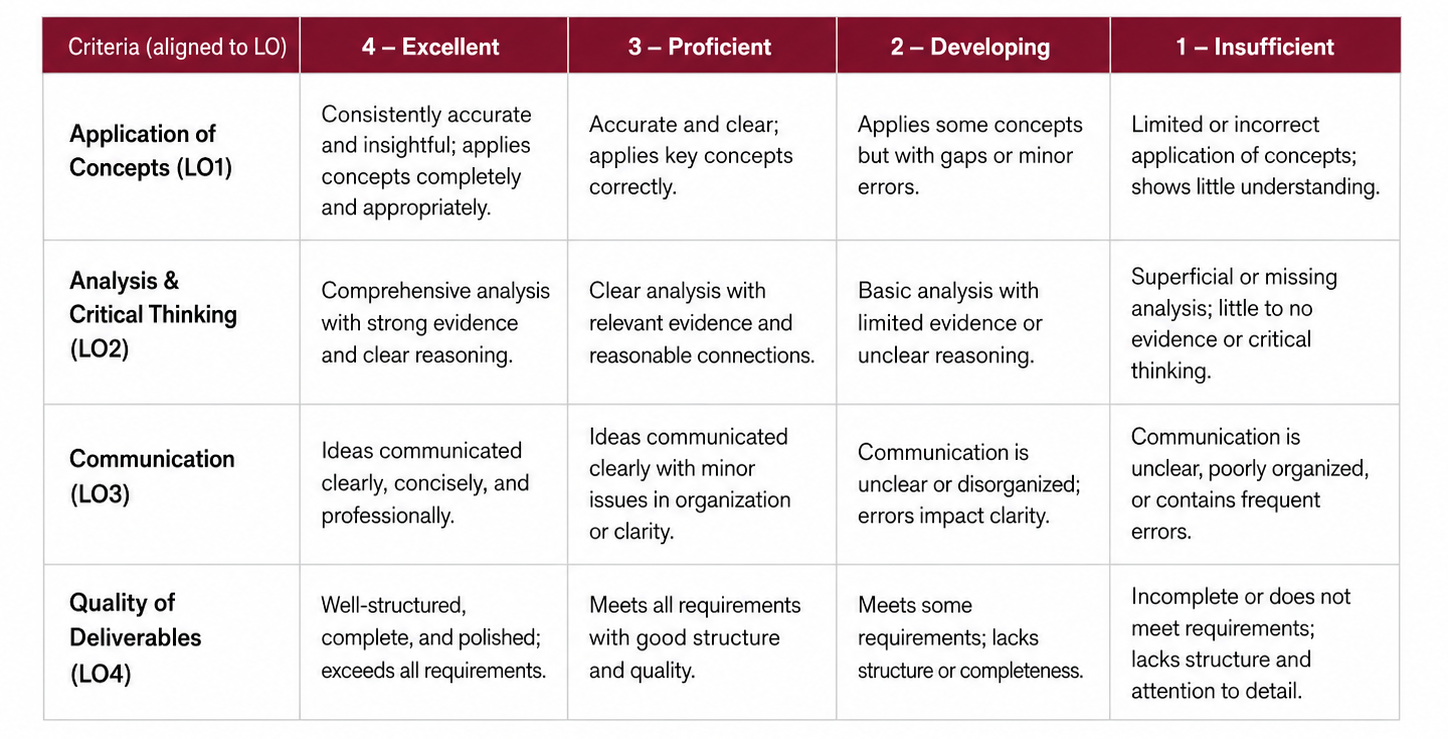
Not every learning activity, or every course, needs a rubric. If your institution considers a rubric important for a given activity, here's how to approach it:
1. If you keep the original learning activities (no alternative readings or exercises): you can use ASU's provided rubrics directly, as long as you have the resources needed to run the activities as designed.
2. If you use an alternative activity, or your institution doesn't already have a rubric for it: you can build your own. Best-practice recommendation, which applies either way:
This depends entirely on each institution's own policy (submission windows, regrade requests, etc.), not prescribed here. The only recommendation is that instructors document their own workflow and communicate it to students in the syllabus.
As an instructor, you should always follow both ASU's academic integrity policies and your own institution's, whichever standard is stricter applies when the two differ. This keeps your course consistent with the same standards your students will be held to once their credits transfer to ASU.
ASU typically uses a letter-grade scale on a 4.0 GPA basis (A/A-/B+/B/B-/C+/C/D/E). Many international institutions use different scales (0-10, 0-20, 0-100, or the European ECTS A-F system). General best practices for conversion:
How to set your grading scheme directly in Canvas:
1. Go to your course's Settings.
2. Under the Course Details tab, check Enable course grading scheme.
3. Click view grading scheme.
4. Select an existing scheme that matches your institution's scale, or click New Grading Scheme to build one from scratch.
5. Enter your grade ranges (e.g., percentage cutoffs for each letter grade or equivalent).
6. Click Save.
Example (illustrative only, not an official ASU table):
| ASU Letter Grade | Percentage | Sample 0-10 Scale | Sample ECTS |
|---|---|---|---|
| A | 94-100% | 9.4-10 | A |
| A- | 90-93% | 9.0-9.3 | A |
| B+ | 87-89% | 8.7-8.9 | B |
| B | 83-86% | 8.3-8.6 | B |
| B- | 80-82% | 8.0-8.2 | C |
| C+ | 77-79% | 7.7-7.9 | C |
| C | 70-76% | 7.0-7.6 | D |
| D | 60-69% | 6.0-6.9 | E |
| E (Fail) | Below 60% | Below 6.0 | F |
Instructor note: the table above is only an illustrative example, one possible way your grading section could end up looking. If your institution's agreement with ASU (or any other governing contract) already establishes a specific grading scale or conversion table, use that instead. Where nothing has been formally agreed, treat this example as a starting point, not a fixed standard.
As a Global Link Ambassador (see Your Role as a Global Link Ambassador), the way you engage with students day to day shapes their first real experience of what this program feels like. The practices below are recommendations, not requirements, ways to reinforce that role, not a checklist we're asking you to complete.
These are recommended practices for any content you add yourself, not a commitment that every existing piece of course content has been audited against them.
A simple record to keep track of changes at the end of each closing cycle.
| Version | Date | Changes | Author |
|---|---|---|---|
| 1.0 | [Date] | Initial version | [Name] |
The Global Link program is a collaborative endeavor. You are supported by your institution's program leadership, by the Cintana Alliance team, and by ASU's Global Link office. The standards in this guide exist not to constrain you, but to protect your students, to ensure that the work they do in your classroom counts, carries forward, and opens doors.
As a Global Link Ambassador, you carry a unique responsibility. But you also carry a unique privilege: the opportunity to be part of your students' international academic journey from its very first steps. We thank you for your commitment, your time, and your excellence.
Need Help? For questions about course modifications, credit transfer eligibility, or Global Link program standards, contact: globallink@asu.edu. Your institution's designated ACI Program Director for Global Link is also available for consultation before and during the term.
Global Link Program | Powered by ASU | globallink@asu.edu
Anderson, C. (2016). TED's secret to great public speaking [Video]. TED Conferences. https://www.ted.com/talks/chris_anderson_ted_s_secret_to_great_public_speaking
Arizona State University. (n.d.). Academic Affairs Manual (ACD). Policy Manuals. https://policy.asu.edu/
Arizona State University. (n.d.). A brief guide to producing videos from your home or office [PDF]. ASU Online. https://onlinestudio.asu.edu/wp-content/uploads/2016/06/web-camera-tutorial.pdf
Arizona State University. (2023). Academic Affairs Manual: ACD 304–10 course syllabus. https://www.asu.edu/aad/manuals/acd/acd304-10.html
Arizona State University. (2023). Why is academic integrity important? Office of the University Provost. https://provost.asu.edu/academic-integrity/impact
Arizona State University, Instructional Design and New Media. (n.d.). Instructional design: One team, many hats. https://idnm.asu.edu/service-areas/instructional-design
Arizona State University, Office of the University Provost. (n.d.). ASU student honor code. https://provost.asu.edu/academic-integrity/honor-code
Arizona State University, Office of the University Provost. (n.d.). Student resources: Behaviors and actions. https://provost.asu.edu/academic-integrity/resources/students
Arizona State University, Office of the University Provost. (n.d.). Student resources: Avoiding plagiarism. https://provost.asu.edu/academic-integrity/resources/students#avoiding-plagiarism
Arizona State University, Office of the University Provost. (n.d.). Syllabus guidelines. Curriculum Development. https://provost.asu.edu/curriculum-development/curriculum-management/syllabus-guidelines
ASU EdPlus. (2023). Course stories, season 4, episode 4: Beyond the classroom—the power of faculty connection in student success. ASU Teach Online. https://teachonline.asu.edu/2023/10/course-stories-season-4-episode-4-beyond-the-classroom-the-power-of-faculty-connection-in-student-success/
ASU Online. (2017). Cheaters never prosper [PDF]. https://teachonline.asu.edu/wp-content/uploads/2015/08/asu_online_february_2017_cheaters_never_prosper_booklet.pdf
Blythe-Lee, E. (2023). Approaches to online office hours. ASU Teach Online. https://teachonline.asu.edu/2023/03/approaches-to-online-office-hours/
Crawford, S. (2012). Aligning assessments with learning objectives. ASU Teach Online. https://teachonline.asu.edu/2012/10/aligning-assessments-with-learning-objectives/
Kelly, R. (2014). Creating a sense of instructor presence in the online classroom. Faculty Focus. http://www.facultyfocus.com/articles/online-education/creating-a-sense-of-instructor-presence-in-the-online-classroom/
Lynch, M. (2018). Social constructivism in education. The Edvocate. https://www.theedadvocate.org/social-constructivism-in-education/
Mitchell, T. (2023). Options for creating media-based instructor presence. ASU Teach Online. https://teachonline.asu.edu/2023/02/options-for-creating-media-based-instructor-presence/
Pearce, K. (2021). How to use Zoom's breakout rooms for collaborative learning. DIYGenius. https://www.diygenius.com/zoom-breakout-rooms/
Pilbeam, R. (2020). Assessment. ASU Teach Online. https://teachonline.asu.edu/2020/03/assessment/
Pilbeam, R. (2020). Academic integrity. ASU Teach Online. https://teachonline.asu.edu/2020/03/academic-integrity-2/
Pilbeam, R. (2020). Instructor presence. ASU Teach Online. https://teachonline.asu.edu/2020/04/instructor-presence/
Quality Matters. (2018). Higher education rubric (6th ed.). https://www.qualitymatters.org/
Sandercock, I. (2014). How important is instructor presence in an online course? ASU Teach Online. https://teachonline.asu.edu/2014/10/important-instructor-presence-online-course/
Senecal, J. (2019). Instruction by design: The quagmire of late assignment policies and procedures. ASU Teach Online. https://teachonline.asu.edu/2019/10/instruction-by-design-the-quagmire-of-late-assignment-policies-and-procedures/
Senecal, J. (2021). Instruction by design: Perceptions of quality in online distance education. ASU Teach Online. https://teachonline.asu.edu/2021/03/instruction-by-design-perceptions-of-quality-in-online-distance-education/
Skysong Innovations. (2023). Intellectual property 101. https://skysonginnovations.com/inventors/intellectual-property-101/
Smith, T. (2012). Writing measurable teaching objectives. ASU Teach Online. http://teachonline.asu.edu/2012/07/writing-measurable-learning-objectives/
Stachowak, B. (2019). How can online instructors get students to talk to each other? EdSurge. https://www.edsurge.com/news/2019-01-09-how-can-online-instructors-get-students-to-talk-to-each-other
University of California, Davis, Office of Student Support and Judicial Affairs. (n.d.). Avoiding plagiarism: Mastering the art of scholarship. https://ossja.ucdavis.edu/avoiding-plagiarism-mastering-art-scholarship
University of Colorado Boulder. (n.d.). PhET interactive simulations for science and math. https://phet.colorado.edu/
Wake Forest University, Center for the Advancement of Teaching. (n.d.). Workload estimator 2.0. https://cat.wfu.edu/resources/tools/estimator2/